Scanning a QR bill: which app to use, and what to do if it does not work
In short. To scan a QR bill, open your bank’s app, go to payments and choose “Scan”. Aim at the QR code marked with a Swiss cross: the payee, amount and reference fill themselves in. For a PDF bill, scan your computer screen, or import the file into the app. If the scan fails, it is almost always a matter of light, size or glare.
Which app scans a QR bill?
Your bank’s. Swiss banks’ apps, and PostFinance’s, can read a QR bill. The function is in the payments section, under a name like “Scan”, “Scan a bill” or a camera icon. There is no need to install a separate scanning app: it is the banking app that turns the QR code into a payment, and it is best never to entrust your banking login to another app.
TWINT, for some bills. Since 4 November 2026, the TWINT app can pay QR bills, but only those whose biller has enabled this payment method. You then choose to pay straight away or later, within the payment deadline. For all the others, the banking app remains the rule.
Scanning a paper bill
- Lay the bill flat, unfolded, under even light. Avoid a lamp directly overhead, which creates a glare on glossy paper.
- In the banking app, choose Scan and aim at the QR code in the payment part, at the bottom of the bill. There is no need to frame it to the millimetre: the app recognises it as soon as it is sharp.
- Check the payment: payee’s name, IBAN, amount. If the amount is empty, it is up to you to enter it.
- Choose the execution date (the bill’s due date, to keep the money in your account until then), then approve.
Scanning a bill received as a PDF
On a computer. Open the PDF, enlarge it so the QR code takes up a good part of the screen, and scan the screen with your phone. Turn the screen brightness up if the scan hesitates.
On your phone only. Your phone cannot scan its own screen. But many banking apps let you import a bill: a PDF or a screenshot, from your files or your photos. Look for “Import” or “Upload” next to the scan function.
In e-banking on a computer. Most e-bankings also accept the PDF directly, by upload, or a QR reader plugged in by USB. Handy when you pay many bills from your desk.
The scan does not work: the fixes
| Symptom | Likely cause | Fix |
|---|---|---|
| The app does not react to the QR code | Glare, shadow, crumpled paper | Bill flat, side light, no flash |
| Scanning a PDF fails | QR code too small or cut off on screen | Enlarge the PDF, turn brightness up |
| The app does not recognise the code | It is not a Swiss payment QR code | Check it has a Swiss cross in the centre |
| The app rejects the bill | Old QR bill without structured addresses | Ask the biller for a new bill |
| The amount is empty | The biller lets you choose the amount | Enter the amount to pay |
Since 21 November 2025, the addresses in the QR code must be structured (street, number, postcode and town in separate fields). Older bills are still processed during a transition period, but if your app rejects one, the biller must send you a new one.
As a last resort, you can enter the payment by hand: IBAN, payee’s name, amount and reference, copied digit by digit. A wrong reference stops the biller matching your payment, and you risk a reminder.
Before approving: 3 checks
- The payee. The name your bank shows must be that of the company billing you. A fake bill often copies a real one’s logo, but not the IBAN.
- The amount, especially if it differs from what you expected.
- The bill itself. A QR bill does not send you to a website: a QR code without a Swiss cross that opens a page is not a bill. Never scan it with the camera “to see what it is”.
Other scams, and what to do if you have already paid: Fake QR bills: how to spot the scam.
Scanning all the month’s bills in a row
The scan itself takes ten seconds. What takes time is finding the bills: the dentist’s in the letterbox, the electricity one in your e-mails, the health insurer’s in a portal.
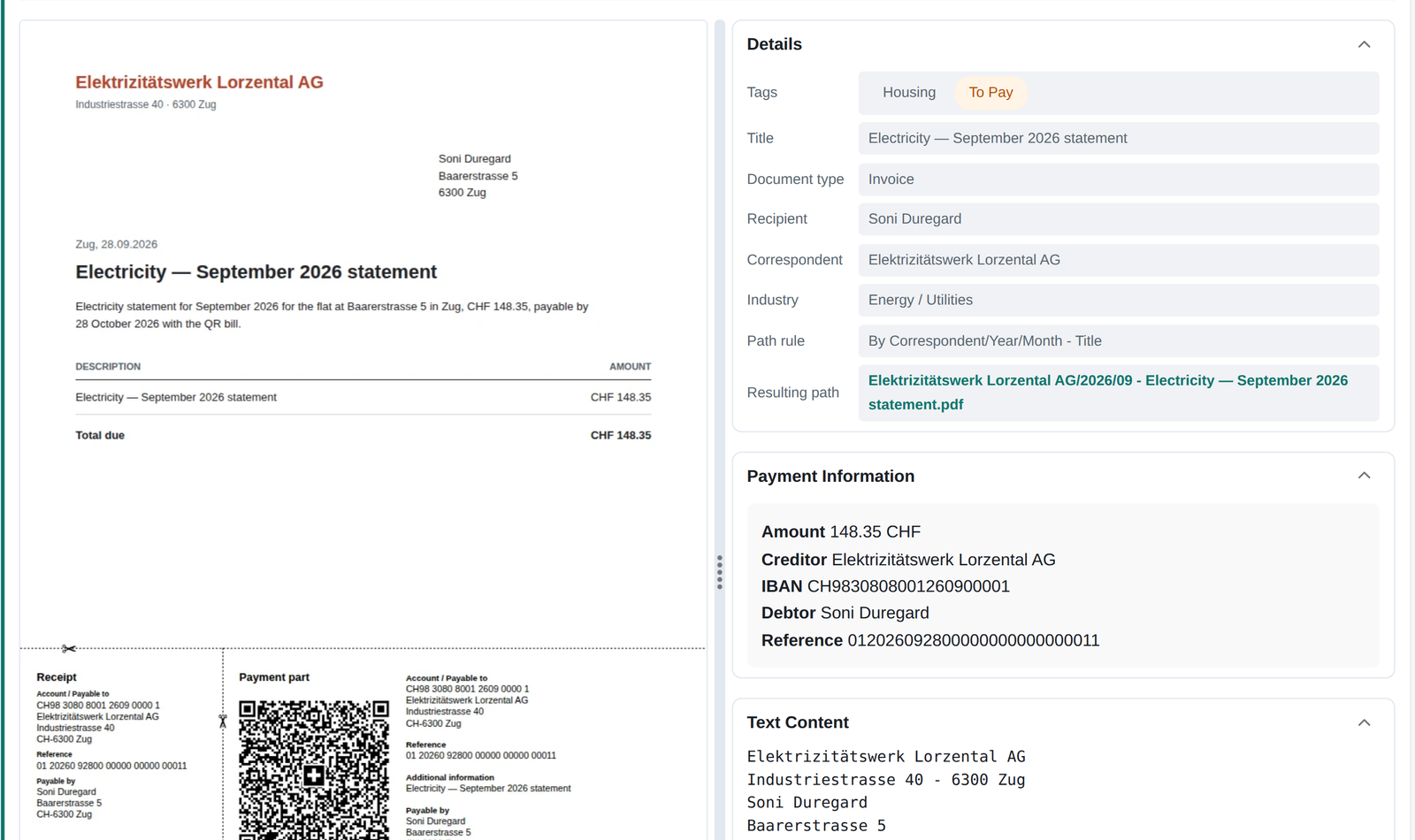
With Charti, you forward your bills to your personal @charti.ch address. Charti reads each one’s QR code (payee, IBAN, amount, reference), tags it “To Pay”, and presents them all in an eBanking view: each QR code is displayed large on your computer screen, ready to be scanned with your banking app, then the next. Once everything is paid, you mark them as paid in one gesture.
Frequently asked questions
Which app should I use to scan a QR bill?
Your bank’s app, or the PostFinance app: Swiss banking apps read QR bills, in the payments menu. There is no need to install a separate scanning app. Since November 2026, some QR bills can also be paid with TWINT, if the biller has enabled it.
Why does my banking app not read the QR code?
Most often: a glare, a folded sheet, a QR code too small on screen or cut off by the edge. Lay the bill flat under even light, or enlarge the PDF so the QR code takes up a good part of the screen. If your app rejects the bill itself, it may be an old QR bill without structured addresses: ask the biller for a new one.
Can I scan a QR bill with my phone’s camera?
The camera shows the content of the QR code as text, but it cannot create a payment. Always scan from your banking app: it is the app that turns the QR code into a payment.
How do I pay a QR bill without a smartphone?
In e-banking on a computer, with a QR reader plugged in by USB or by uploading the PDF or a photo of the bill. You can also pay in cash at a post office counter with the printed bill, or send a paper payment slip to your bank.
Can I pay a QR bill with TWINT?
Yes, since November 2026, but only if the biller has enabled TWINT. You then scan the QR code in the TWINT app and choose when to pay, within the payment deadline. For other QR bills, use your banking app.
This guide is for information only and is not legal or tax advice. If in doubt, ask your cantonal tax office or your fiduciary.